Docker is revolutionizing how we develop, deploy, and operate applications. "Containerization" is no longer a buzzword but an essential skill for developers and system administrators. At the heart of Docker are containers—packaged, lightweight, and isolated environments that ensure your app runs consistently everywhere.
This article will take you from the very first steps to mastering how to run and manage Docker containers efficiently and professionally. Whether you’re a beginner or have experience, you’ll find useful and engaging information here.
What is a Docker Container? Why is it important?
Imagine you’re packing for a trip. Instead of throwing everything into one big suitcase, you use smaller packing cubes: one for clothes, one for toiletries, one for electronics. Each cube is independent and contains everything needed for a specific purpose.
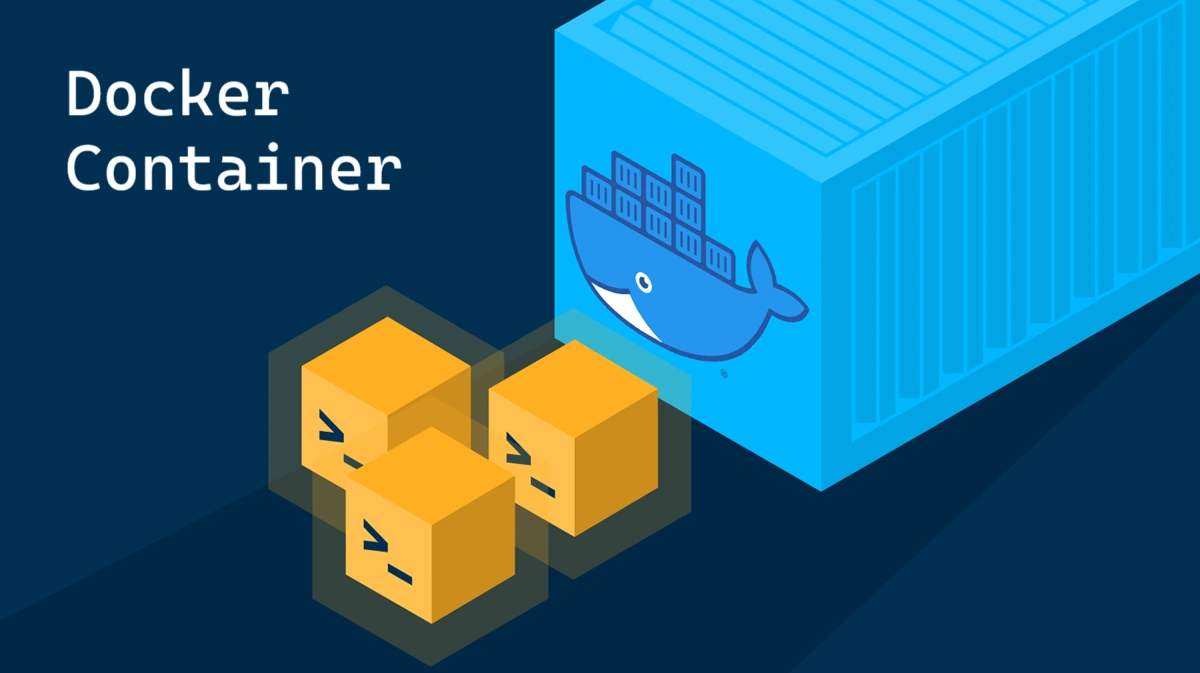
A Docker container works similarly. It’s a standard, executable package that includes everything an app needs to run: source code, runtime, system tools, libraries, and settings. This ensures your app always works the same, no matter where it’s deployed—on your laptop, a colleague’s server, or in the cloud.
Key benefits:
Consistency: Solves the classic "it works on my machine, but not on yours" problem.
Portability: Easily move apps between different environments.
Resource efficiency: Containers are lighter and start much faster than traditional virtual machines.
Scalability: Easily spin up multiple instances of an app to handle high loads.
The docker run Command: Where it all begins
The docker run command is your gateway to the world of containers. It creates a new container from an image (template) and starts it.
Basic syntax:
Bash
docker run [OPTIONS] IMAGE[:TAG] [COMMAND] [ARG...]
IMAGE: The template you want to use (e.g., nginx, ubuntu, mysql).
TAG: The specific version of the image (e.g., nginx:latest, ubuntu:20.04). If omitted, Docker uses the latest tag by default.
Classic "Hello World" example:
Try running your first container:
Bash
docker run hello-world
If you don’t have the hello-world image locally, Docker will automatically pull it from Docker Hub (the largest public image repository), then create and run the container. You’ll see a welcome message confirming your Docker installation is working!
Common Options When Running Containers
To unlock the full power of docker run, you need to get familiar with its options (also called "flags"). Here are the most important ones you’ll use daily:
Run in the background (Detached Mode) with -d
When running a web app (like Nginx), you don’t want your terminal to be "locked" by that process. The -d (or --detach) option runs the container in the background.
Bash
docker run -d --name my-web-server nginx
This command starts an Nginx container in the background and returns its container ID.
Port Mapping with -p
Containers have their own isolated network. To access an app running inside a container from outside, you need to "map" a port on your host to a port in the container.
Syntax:-p HOST_PORT:CONTAINER_PORT
Bash
docker run -d -p 8080:80 --name my-web-server nginx
With this command, all traffic to port 8080 on your host is forwarded to port 80 in the Nginx container. Now, open your browser and go to http://localhost:8080 to see the Nginx welcome page.
Assign a Friendly Name with --name
Docker auto-generates random names for containers (e.g., angry_torvalds). For easier management, assign your own name using the --name option.
Bash
docker run -d -p 8080:80 --name my-nginx-app nginx
Interactive Mode with -it
Sometimes you want to "get inside" a container to run commands, like accessing a shell. The -it option (combines -i for interactive and -t for TTY) lets you do that.
Bash
docker run -it ubuntu bash
This starts a container from the Ubuntu image and opens a bash shell inside it. The prompt changes, showing you’re now inside the container’s environment.
Mounting Data (Volumes) with -v
Data created inside a container is lost when the container is deleted. To persist data, use volumes. A volume links a folder on your host to a folder inside the container.
Syntax:-v /path/on/host:/path/in/container
Bash
docker run -d -p 8080:80 --name my-website -v /path/to/your/html:/usr/share/nginx/html nginx
With this, you can edit HTML files in /path/to/your/html on your host, and changes are instantly reflected in the website running inside the container.
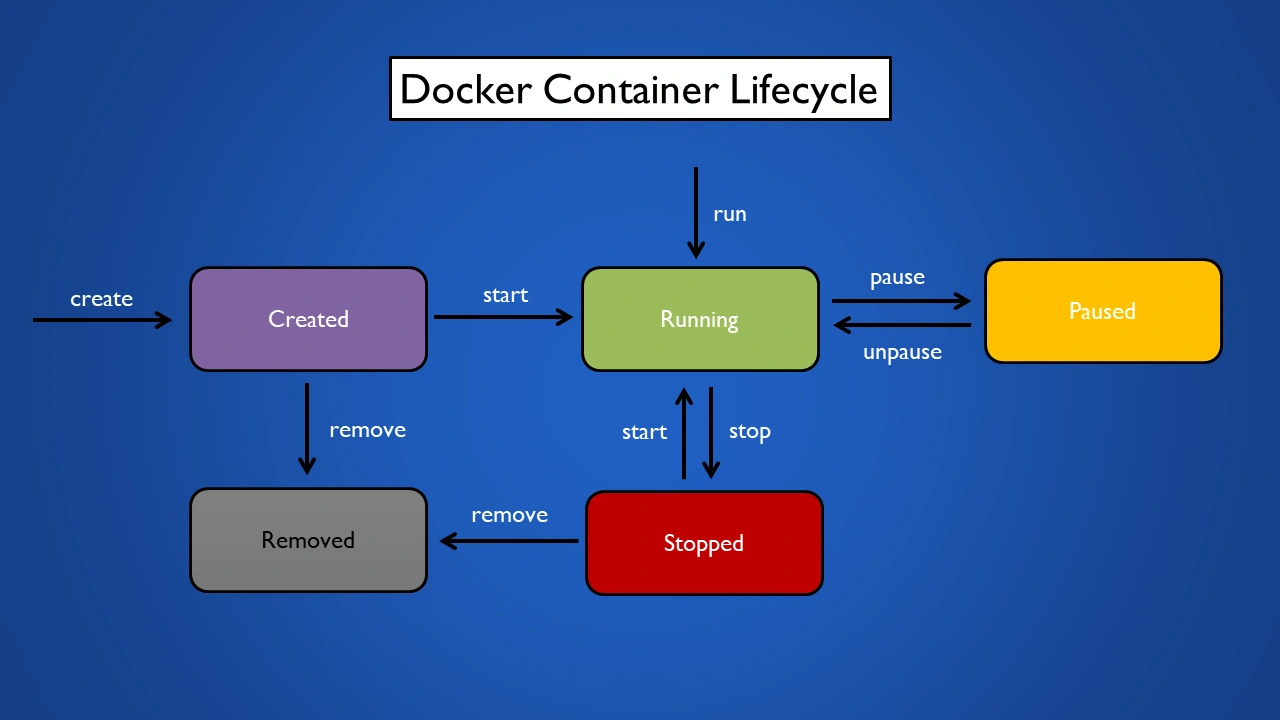
Managing the Container Lifecycle
Once your container is running, you need to know how to manage it.
Here are the essential commands:
List running containers:
Bash
docker ps
List all containers (including stopped):
Bash
docker ps -a
Stop a container:
Bash
docker stop <container_id_or_name>
Restart a stopped container:
Bash
docker start <container_id_or_name>
Note:docker runcreates and starts a new container, while docker startrestarts an existing (stopped) one.
View container logs:
Bash
docker logs <container_id_or_name>
Add -f to follow logs in real time: docker logs -f <container_name>.
Access a running container:
Bash
docker exec -it <container_id_or_name> bash
The exec command lets you run a new command inside a running container without stopping or restarting it.
Remove a container:
Bash
docker rm <container_id_or_name>
You can only remove stopped containers. To force-remove a running container, add the -f flag: docker rm -f <container_name>.
Next Step: Docker Compose for Multi-Container Apps
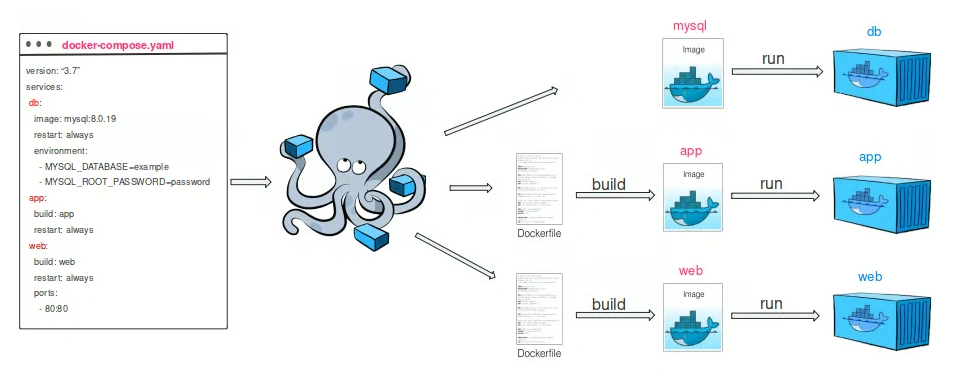
As your app grows more complex, involving multiple services (e.g., a web server, a database, a cache), managing each container with long docker run commands becomes cumbersome.
This is where Docker Compose shines. It’s a tool that lets you define and run multi-container Docker apps using a single configuration file called docker-compose.yml.
With this file, you only need one command to start the whole app:
Bash
docker-compose up -d
And to stop everything:
Bash
docker-compose down
Docker Compose greatly simplifies managing complex architectures and is an essential tool in modern workflows.
Conclusion: Running Docker Containers is a Fundamental Skill
Running containers in Docker is a foundational skill—simple yet incredibly powerful. By mastering the docker run command, its common options, and understanding the container lifecycle, you hold the key to building and deploying apps efficiently, consistently, and reliably.
There’s much more to explore with Docker, like building your own images with Dockerfile, optimizing for security, or diving into orchestration systems like Kubernetes. Start with these basics, practice often, and you’ll soon master this amazing technology. Good luck!
A detailed guide to writing effective Dockerfiles for beginners. Learn key instructions, tips for optimizing image size, and how to build production-ready images.
Want to build Docker Images like a pro? This article provides a step-by-step guide, from basic Dockerfiles to optimization tips for creating lightweight and efficient Docker Images.
Master Docker networking to optimize performance and security for your applications. A detailed guide on creating and configuring networks, helping you connect containers easily and efficiently.
A detailed look at Docker Images and Containers. This article will help you understand the concepts, differences, and how to use these two core components of Docker effectively.
![[Docker Basics] How to Write an Optimal Dockerfile for Beginners](/images/blog/how-to-write-dockerfile-thumbnail.webp)
![[Docker Basics] A Simple and Effective Guide to Building Docker Images](/images/blog/how-to-build-docker-image.webp)
![[Docker Basics] Docker Networking: A Guide to Container Connectivity](/images/blog/learn-about-docker-networking.webp)
![[Docker Basics] Image and Container: Concepts, Differences, and Usage](/images/blog/docker-image-and-container-thumbnail.webp)