Three acronyms stand between you and your first compiled Java program, and almost every tutorial defines them in one line and moves on. That one line is usually also out of date: it describes a JRE you can no longer download and a directory layout that stopped existing in 2017.
This article gives the exact definitions, shows what your JDK actually ships, and then installs Java from scratch on macOS, Windows and Linux. It uses Java 21. The command output comes from a Homebrew build on macOS, so it shows Homebrew as the vendor and paths under /opt/homebrew; a Temurin install prints its own vendor name and paths.
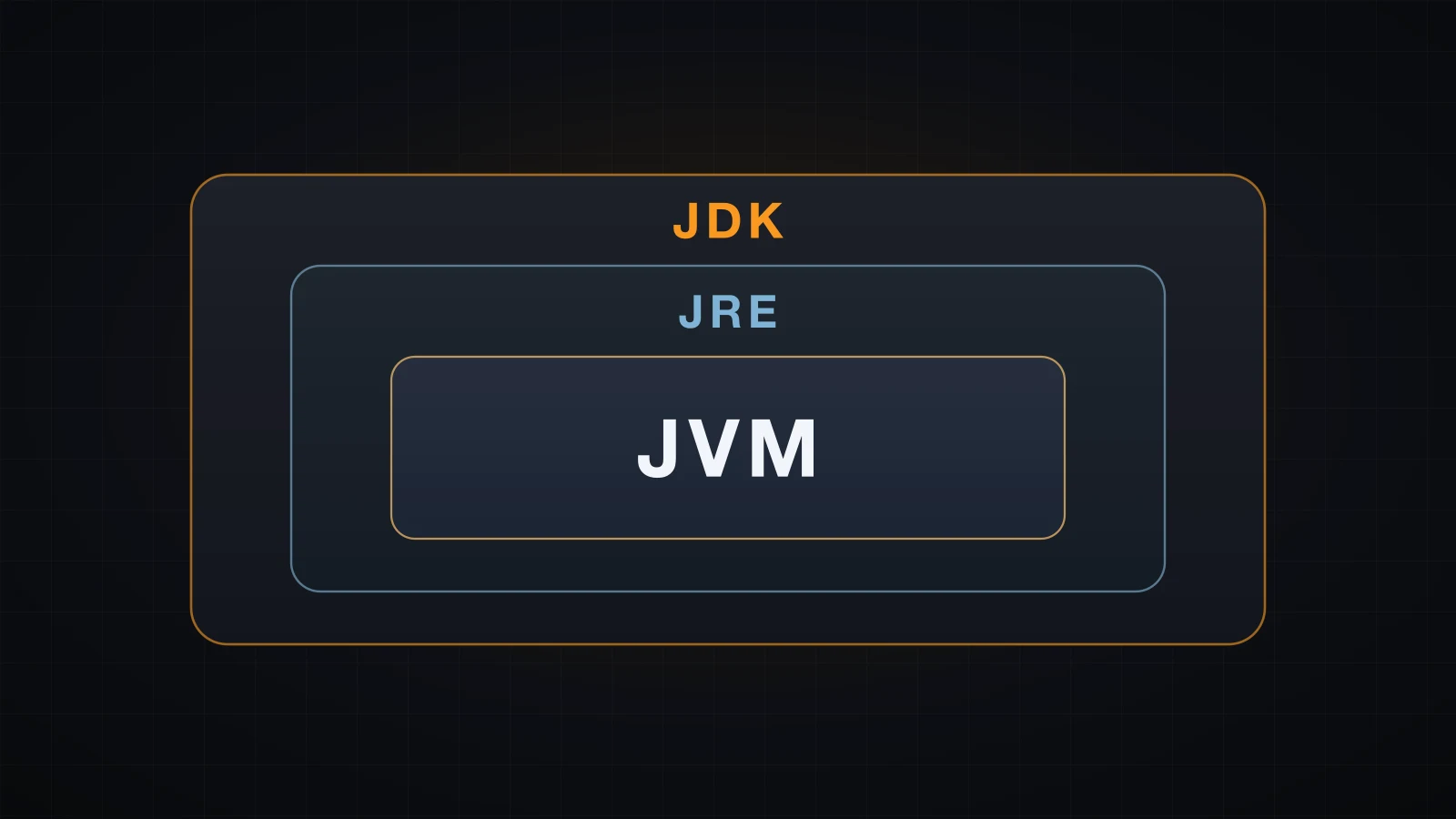
The short version: the JVM runs bytecode, the JRE is the JVM plus the class library, the JDK is the JRE plus the compiler — and the JDK is the only one of the three you should install.
JDK, JRE and JVM: what each one actually is
JVM: a specification, and the process that runs your bytecode
The JVM is two things at once, which is the source of most of the confusion.
It is a specification: The Java Virtual Machine Specification, a document that defines the class file format, the bytecode instruction set, the type system and the memory model. Anybody may implement it, and several people have — HotSpot (the implementation inside OpenJDK), Eclipse OpenJ9, GraalVM, Azul Zing.
It is also a process. When you type java Hello, the operating system starts one process; inside it, an implementation of that specification loads your class, checks it and runs it. java is the launcher; the JVM is what the launcher starts. There is no separate JVM binary anywhere on your disk.
Two consequences worth carrying around:
- The JVM does not run Java. It runs class files. Kotlin, Scala, Groovy and Clojure compile to the same bytecode and execute on the same JVM, which is why they can call Java libraries directly.
- You never install a JVM by itself. It arrives inside a runtime, which arrives inside a JDK.
The main parts of a JVM implementation are the class loader, the execution engine (an interpreter plus a JIT compiler), the memory areas it manages (heap, thread stacks, metaspace) and a garbage collector. What each one does during a run is a subject of its own; here, the JVM is simply the layer that executes bytecode.
JRE: the JVM plus the standard class library
A Java Runtime Environment is a JVM plus everything a compiled program needs while it runs:
- the standard class library —
java.lang,java.util,java.io,java.net,java.timeand the rest - the
javalauncher - supporting files: the CA trust store, locale data, configuration under
conf/
That is enough to run a .class file or a .jar. It is not enough to compile anything, because a JRE contains no javac.
JDK: the JRE plus the tools that compile
A Java Development Kit is a JRE plus the development toolchain: the compiler, the disassembler, the documentation generator, the archiver, the REPL, the packaging tools.
The containment is strict and worth memorising as a single sentence: the JDK contains the JRE, and the JRE contains the JVM. Each layer adds capability to the layer inside it.
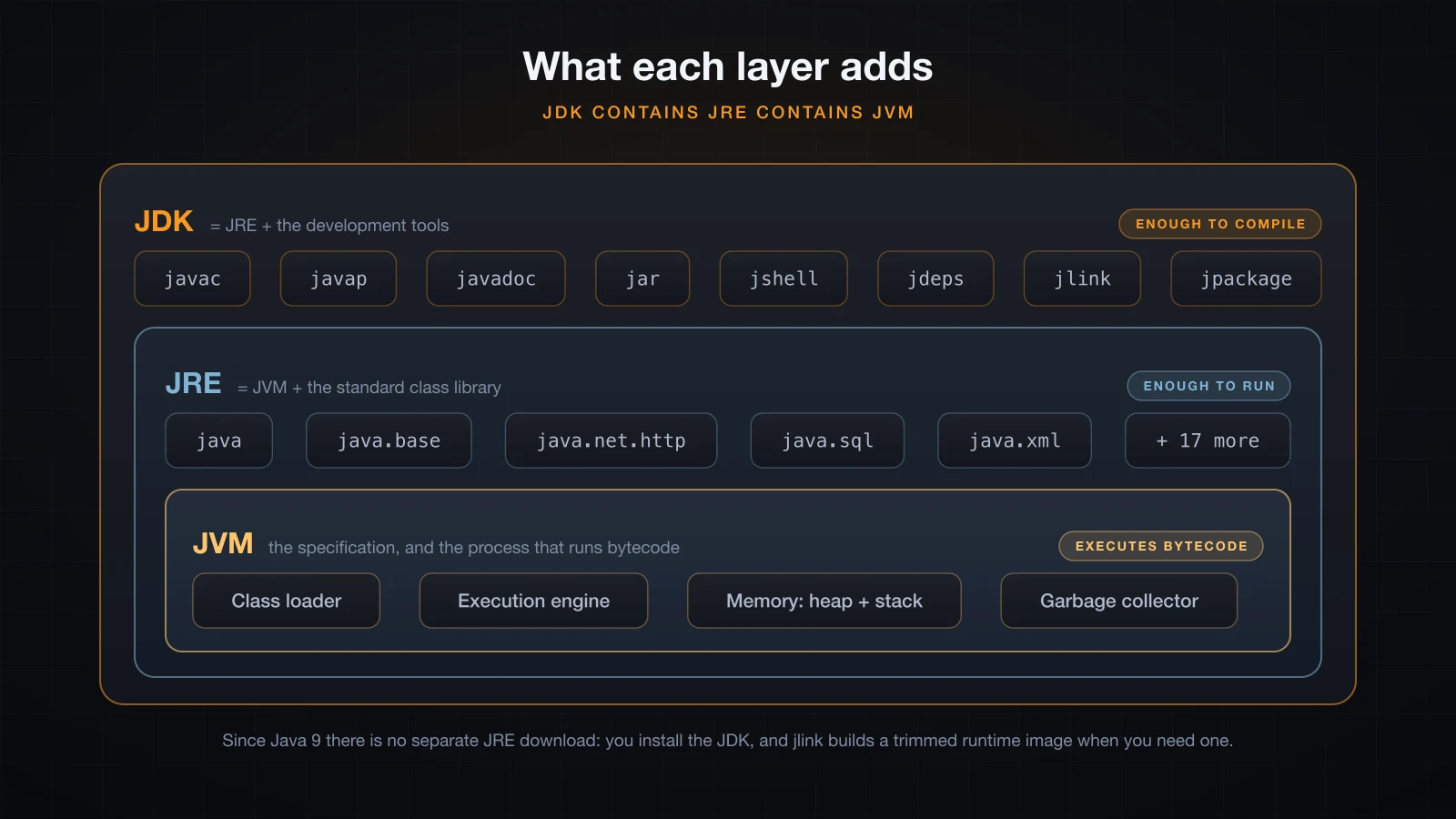
That relationship is not just conceptual. Build a runtime image containing the whole standard library and look at its bin directory:
jlink --add-modules java.se --output jre-like
ls jre-like/binjava
jrunscript
keytool
rmiregistryFour executables. The JDK it was carved out of has twenty-nine. The twenty-five extra ones are the "D" in JDK.
Why you cannot just download a JRE any more
Up to Java 8 the picture matched the tutorials exactly: Oracle published a separate JRE installer for end users, and the JDK contained a jre/ subdirectory holding the runtime half of itself.
Java 9 ended both. JEP 220 restructured the runtime image around the module system, and the nested jre/ directory disappeared. Look at a modern JDK:
ls "$JAVA_HOME"bin
conf
demo
include
jmods
legal
lib
man
releaseNo jre. The runtime and the tools now live in one image, split into modules rather than directories. Oracle stopped publishing a standalone JRE download from Java 11 onward.
What replaced it is jlink, which assembles a custom runtime image from exactly the modules an application needs:
jlink --add-modules java.base --strip-debug --no-header-files --no-man-pages --output myruntime
ls myruntime/bin
du -sh myruntime jre-like "$JAVA_HOME"java
keytool
41M myruntime
90M jre-like
331M /opt/homebrew/Cellar/openjdk@21/21.0.6/libexec/openjdk.jdk/Contents/HomeThree images from one installation: a 41 MB minimal runtime with only java.base, a 90 MB image with the full standard library — which is what a JRE always was — and the 331 MB JDK. None of them contains javac except the last.
One honest caveat, because "the JRE no longer exists" is too strong. Some vendors still publish a runtime under that name: Eclipse Temurin ships a jre image type alongside its JDK for Java 21, and Debian and Ubuntu package openjdk-21-jre-headless. Those are jlink-built runtime images with a familiar label, produced from the same JDK sources — not an upstream Oracle JRE. They exist for servers and containers that want a smaller image.
For learning and for development, the rule is simple: install the JDK. A JRE cannot compile, and you are about to compile.
What is actually inside the JDK bin directory
ls "$JAVA_HOME/bin"jar jcmd jhsdb jpackage jstatd
jarsigner jconsole jimage jps jwebserver
java jdb jinfo jrunscript keytool
javac jdeprscan jlink jshell rmiregistry
javadoc jdeps jmap jstack serialver
javap jfr jmod jstatTwenty-nine programs. You will use six of them regularly and can ignore the rest until you need them.
| Tool | What it does | When you reach for it |
|---|---|---|
javac | Compiles .java source into .class bytecode | Every build. The one thing a JRE cannot do |
java | Launches the JVM and runs a class or a .jar | Every run. Since Java 11 it also runs a single .java file directly |
jshell | Interactive REPL for Java expressions | Trying an API without writing a class |
jar | Creates, lists and extracts .jar archives | Packaging a program into one distributable file |
javadoc | Generates HTML API documentation from /** ... */ comments | Publishing library documentation |
javap | Disassembles a class file: signatures, constant pool, bytecode | Checking what the compiler actually produced |
jlink | Builds a trimmed runtime image from selected modules | Shrinking a container image; the modern replacement for shipping a JRE |
jpackage | Wraps an application plus a runtime into a native installer (.dmg, .msi, .deb) | Shipping a desktop app to users without Java |
jcmd | Sends diagnostic commands to a running JVM: thread dumps, heap dumps, flags | Debugging a live process |
jdeps | Reports the packages and modules a jar depends on | Working out what to pass to jlink |
javap is the most under-used of these for a beginner. It is how you settle arguments about what the compiler did:
javap -v Hello.class | grep "major version" major version: 65That number comes back in the troubleshooting section.
Which JDK distribution should you install?
OpenJDK is the upstream project — the source code, developed in the open, licensed under GPLv2 with the Classpath Exception. Almost nobody downloads it as source. Instead, vendors compile that same source, test it against the compatibility kit, and publish binaries.
| Distribution | Publisher | Licence | Notes |
|---|---|---|---|
| OpenJDK reference builds | Oracle, at jdk.java.net | GPLv2 + Classpath Exception | The upstream binaries. Each release gets updates only until the next one, six months later |
| Eclipse Temurin | Eclipse Adoptium | GPLv2 + Classpath Exception | Free for any use, TCK-tested, LTS releases maintained for years. The default choice |
| Amazon Corretto | Amazon | GPLv2 + Classpath Exception | Free, long-term support, what runs on AWS Lambda |
| Azul Zulu | Azul Systems | GPLv2 + Classpath Exception | Free builds; Azul sells support and a low-latency JVM separately |
| Microsoft Build of OpenJDK | Microsoft | GPLv2 + Classpath Exception | Free; integrated with Azure and the VS Code Java extension |
| Oracle JDK | Oracle | NFTC | Same code, different licence. Read the next paragraph before choosing it |
The licensing point matters and is usually fudged. Every row except the last is the same OpenJDK source under GPLv2 with the Classpath Exception: free to download, free to run in production, free forever, with no registration and no audit risk. The Classpath Exception is the clause that stops the GPL from reaching into your own code.
Oracle JDK is that same code published under Oracle's No-Fee Terms and Conditions. NFTC permits free use including production, but only within a window: for an LTS release, until one year after the next LTS ships. After that window, continuing to take security updates requires a Java SE Universal Subscription, which Oracle has priced per employee since January 2023 — counting every employee in the company, not every developer. Nothing here is a trap you fall into by accident, but there is no reason to walk near it.
Install Eclipse Temurin. It is the same bytecode-compatible JDK, maintained by a vendor-neutral foundation.
Which Java version should you learn?
Since Java 10 there has been a release every six months. Most of those are supported for exactly six months. A few are designated LTS and receive security updates for years, and those are the ones the ecosystem standardises on.
| Release | Shipped | Status |
|---|---|---|
| Java 8 | March 2014 | LTS. Still widely deployed in legacy systems. Do not learn on it |
| Java 11 | September 2018 | LTS. The first modular-era baseline |
| Java 17 | September 2021 | LTS. The baseline for Spring Boot 3 and most modern frameworks |
| Java 21 | September 2023 | LTS. Virtual threads, records, pattern matching, sealed types |
| Java 25 | September 2025 | LTS. The current long-term release |
Learn on Java 21. It has the widest overlap between what tutorials assume, what frameworks require and what job listings ask for, and it is supported everywhere. Java 25 is newer and every example in this series runs on it unchanged; pick it if you prefer being current. Do not start on Java 8 — you would be learning a language missing fifteen years of syntax, including var, records, text blocks and switch expressions.
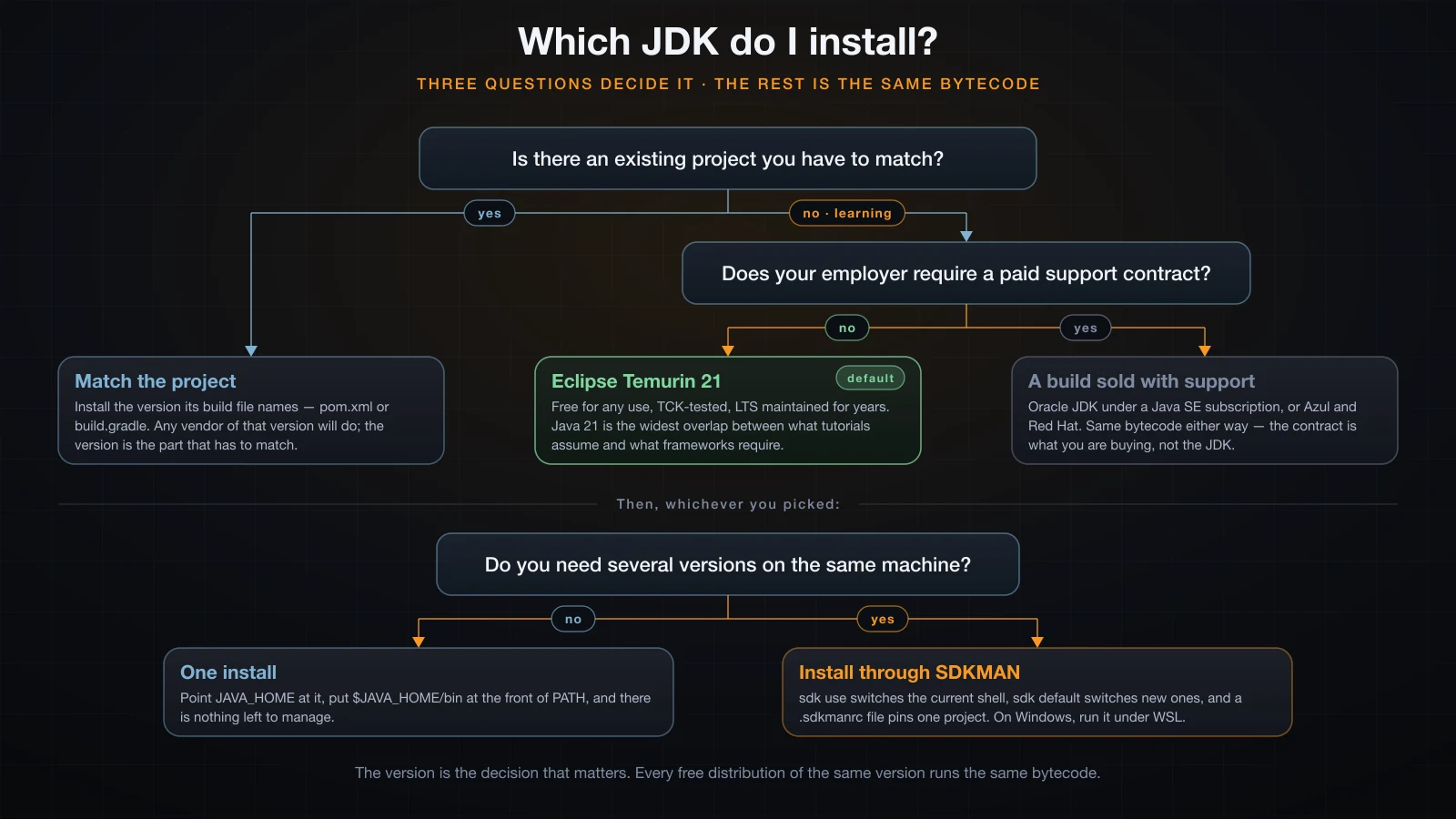
Three questions settle it. Everything downstream of them is the same bytecode.
Installing the JDK
macOS
The shortest path is Homebrew:
brew install --cask temurin@21The cask installs a .pkg into /Library/Java/JavaVirtualMachines/, which is where macOS looks for JDKs. There is also a formula, brew install openjdk@21, which is keg-only and installs under /opt/homebrew; it needs a symlink into that directory before macOS can see it:
ls -l /Library/Java/JavaVirtualMachines/lrwxr-xr-x 1 root wheel 48 Feb 3 2025 openjdk-17.jdk -> /opt/homebrew/opt/openjdk@17/libexec/openjdk.jdk
lrwxr-xr-x 1 root wheel 48 Jan 29 2025 openjdk-21.jdk -> /opt/homebrew/opt/openjdk@21/libexec/openjdk.jdk
lrwxr-xr-x 1 root wheel 45 Jan 29 2025 openjdk.jdk -> /opt/homebrew/opt/openjdk/libexec/openjdk.jdkWithout Homebrew, download the .pkg for your architecture from adoptium.net — aarch64 for Apple Silicon, x64 for Intel Macs — and run it. Either way, nothing else is required: /usr/bin/java on macOS is a small stub that finds the real JDK through that directory, so java works in a new terminal immediately.
Windows
With the built-in package manager:
winget install EclipseAdoptium.Temurin.21.JDKWith the installer, download the .msi from adoptium.net and pay attention to one screen. The Custom Setup step lists optional features, and two of them are switched off by default:
- Set JAVA_HOME variable
- Add to PATH
Both show "Entire feature will be unavailable" until you click them and choose "Will be installed on local hard drive". Turn both on. Skipping the first is the single most common reason a Windows machine can run java from the terminal but Maven, Gradle and half the IDE plugins insist Java is not installed.
Then close the terminal and open a new one. Windows reads environment variables when a process starts, so an already-open PowerShell window will not see the change.
Linux
Debian and Ubuntu:
sudo apt update
sudo apt install openjdk-21-jdk
This installs into /usr/lib/jvm/java-21-openjdk-amd64. Note the package name: openjdk-21-jre and openjdk-21-jre-headless also exist and install a runtime with no compiler, which is exactly the JRE-versus-JDK trap this article is about.
Fedora and RHEL:
sudo dnf install java-21-openjdk-develThe -devel suffix is what pulls in javac. Without it, java-21-openjdk gives you the runtime only.
Arch:
sudo pacman -S jdk21-openjdkDistribution packages lag upstream, and some distributions do not package the newest LTS at all. If apt offers only Java 17, use SDKMAN instead of fighting the package manager.
SDKMAN: the cleanest way to hold several versions
SDKMAN installs JDKs into your home directory and rewrites JAVA_HOME and PATH when you switch. It works on macOS, Linux and WSL, and it is the tool to reach for the moment you need two versions at once.
curl -s "https://get.sdkman.io" | bash
source "$HOME/.sdkman/bin/sdkman-init.sh"
sdk list java
The listing shows every vendor and an identifier for each build. On macOS/arm64 the Temurin rows currently read:
 Temurin        |     | 26.0.2             | 26.0.2-tem
                |     | 25.0.4             | 25.0.4-tem
                |     | 21.0.12+1.1        | 21.0.12+1.1-tem
                |     | 17.0.20            | 17.0.20-tem
                |     | 11.0.32            | 11.0.32-tem
Install by identifier, then choose a scope:
sdk install java 21.0.12+1.1-tem
sdk use java 21.0.12+1.1-tem       # this shell only
sdk default java 21.0.12+1.1-tem   # every new shell
sdk current java
sdk install java with no identifier installs the vendor default, currently the newest Temurin LTS. Running sdk env init in a project writes a .sdkmanrc file, and sdk env then switches to that project's JDK whenever you enter the directory.
JAVA_HOME and PATH: what each one is for
These two are not interchangeable, and confusing them causes a specific class of bug where java -version works but a build tool claims Java is missing.
| Variable | Points at | Answers the question | Read by |
|---|---|---|---|
PATH | A list of directories containing executables | "Which program runs when I type java?" | The shell |
JAVA_HOME | The root of one JDK installation — the directory containing bin, lib, conf | "Which JDK should this tool use?" | Maven, Gradle, Ant, Tomcat, IDE run configurations, most .sh launchers |
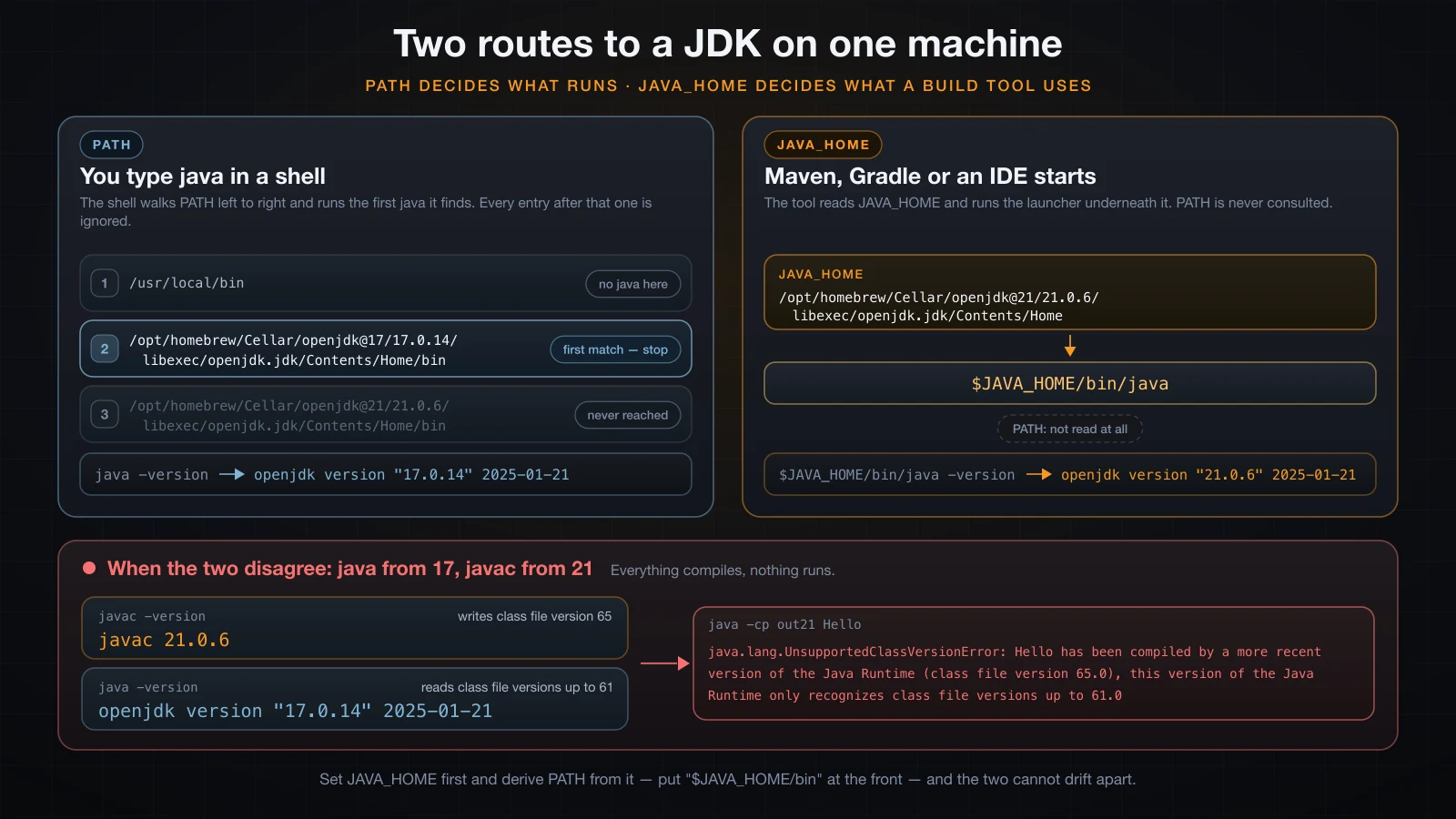
The two lookups are independent, which is exactly how they drift apart.
A tool needs JAVA_HOME rather than PATH when it needs more than the launcher. Gradle has to locate javac and the JDK's module descriptors; an application server has to pin one specific JDK regardless of what happens to be first on PATH. Giving them a directory is unambiguous in a way that searching PATH is not.
So set JAVA_HOME first and derive PATH from it. That way they cannot disagree.
zsh and bash
On macOS, zsh has been the default shell since Catalina, and /usr/libexec/java_home resolves a version number to a path:
# ~/.zshrc
export JAVA_HOME="$(/usr/libexec/java_home -v 21)"
export PATH="$JAVA_HOME/bin:$PATH"
On Linux there is no java_home, so name the directory:
# ~/.bashrc
export JAVA_HOME=/usr/lib/jvm/java-21-openjdk-amd64
export PATH="$JAVA_HOME/bin:$PATH"
Then source ~/.zshrc — or open a new terminal — because an edit to a startup file does nothing to a shell that is already running.
Put $JAVA_HOME/bin at the front of PATH. Appending it means a system JDK earlier in the list keeps winning, which is a slow bug to find.
There is a macOS-specific detail here that is worth knowing. /usr/bin/java is not a real JDK: it is a stub that looks up an installed JDK, and it honours JAVA_HOME when that variable points at a valid one.
JAVA_HOME=$(/usr/libexec/java_home -v 17) /usr/bin/java -versionopenjdk version "17.0.14" 2025-01-21Windows environment variables
The reliable route is the GUI. Press Win+R, run sysdm.cpl, go to Advanced → Environment Variables, and under User variables:
- New… — name
JAVA_HOME, value the install directory, for exampleC:\Program Files\Eclipse Adoptium\jdk-21.0.12.1-hotspot. That directory must be the one containingbin, notbinitself. - Select Path → Edit… → New, and add
%JAVA_HOME%\bin.
The GUI stores %JAVA_HOME%\bin as an expandable value, so changing JAVA_HOME later moves PATH with it.
From a terminal, setx writes the same registry entries:
setx JAVA_HOME "C:\Program Files\Eclipse Adoptium\jdk-21.0.12.1-hotspot"⚠️ Do not use
setx PATH "%JAVA_HOME%\bin;%PATH%".setxexpands the value before storing it, flattening yourPATHinto literal text, and it silently truncates anything past 1024 characters. EditPathin the GUI instead.
Either way, open a new terminal afterwards.
Verifying the installation
Four commands, in this order.
java -versionopenjdk version "21.0.6" 2025-01-21
OpenJDK Runtime Environment Homebrew (build 21.0.6)
OpenJDK 64-Bit Server VM Homebrew (build 21.0.6, mixed mode, sharing)javac -versionjavac 21.0.6If the second one fails, you have a runtime but not a JDK. The two version numbers must also match, for reasons the troubleshooting section demonstrates.
echo "$JAVA_HOME"/opt/homebrew/Cellar/openjdk@21/21.0.6/libexec/openjdk.jdk/Contents/HomeAn empty line here is not fatal for java itself, but it will break Maven and Gradle later.
There is a quirk in java -version that catches people writing setup scripts: it prints to stderr, not stdout. Piping it to grep silently produces nothing. Since Java 9 there is a double-dash form that writes to stdout:
java -version 2>/dev/null      # prints nothing at all
java --version # prints to stdoutopenjdk 21.0.6 2025-01-21
OpenJDK Runtime Environment Homebrew (build 21.0.6)
OpenJDK 64-Bit Server VM Homebrew (build 21.0.6, mixed mode, sharing)Finally, compile and run something. Save this as Hello.java:
public class Hello {
    public static void main(String[] args) {
        System.out.println("Java " + System.getProperty("java.version"));
        System.out.println("Vendor: " + System.getProperty("java.vendor"));
        System.out.println("Home: " + System.getProperty("java.home"));
    }
}javac Hello.java
java HelloJava 21.0.6
Vendor: Homebrew
Home: /opt/homebrew/Cellar/openjdk@21/21.0.6/libexec/openjdk.jdk/Contents/Homejavac printing nothing is success — it wrote Hello.class next to the source. Note that java Hello takes the class name, without the .class extension.
Since Java 11 you can skip the compile step for a single file, which is handy for a quick check:
java Hello.javaJava 21.0.6
Vendor: Homebrew
Home: /opt/homebrew/Cellar/openjdk@21/21.0.6/libexec/openjdk.jdk/Contents/HomeAnd jshell gives you an expression evaluator with no file at all:
$ jshell
|  Welcome to JShell -- Version 21.0.6
|  For an introduction type: /help intro

jshell> int x = 2 + 3
x ==> 5

jshell> System.out.println("Hello from jshell")
Hello from jshell

jshell> /exit
|  Goodbye
Running several JDK versions side by side
You will end up with more than one JDK — an older project needs 17, a tutorial needs 21. Installing a second one does not break the first; only JAVA_HOME and PATH decide which is active.
On macOS, list what is installed:
/usr/libexec/java_home -VMatching Java Virtual Machines (2):
21.0.6 (arm64) "Homebrew" - "OpenJDK 21.0.6" /opt/homebrew/Cellar/openjdk@21/21.0.6/libexec/openjdk.jdk/Contents/Home
17.0.14 (arm64) "Homebrew" - "OpenJDK 17.0.14" /opt/homebrew/Cellar/openjdk@17/17.0.14/libexec/openjdk.jdk/Contents/HomeThe list goes to stderr; the currently selected home is printed separately to stdout, which is what makes $(/usr/libexec/java_home -v 21) usable inside a variable assignment.
Switching for one shell session, without touching any config file:
export JAVA_HOME=$(/usr/libexec/java_home -v 17)
export PATH="$JAVA_HOME/bin:$PATH"
java -version
javac -versionopenjdk version "17.0.14" 2025-01-21
OpenJDK Runtime Environment Homebrew (build 17.0.14+0)
OpenJDK 64-Bit Server VM Homebrew (build 17.0.14+0, mixed mode, sharing)
javac 17.0.14Close the terminal and you are back on 21.
On Debian and Ubuntu the same job is done by the alternatives system, which lets you pick the default interactively:
sudo update-alternatives --config java
sudo update-alternatives --config javac
Both entries must be set, or you end up with the mismatched toolchain described below.
Across all Unix-like systems, SDKMAN is the least error-prone option: sdk use java 17.0.20-tem changes the current shell, sdk default java 21.0.12+1.1-tem changes new ones. On Windows, either keep one JDK and edit JAVA_HOME when a project needs another, or run the whole toolchain under WSL and use SDKMAN there.
Troubleshooting
command not found: javac
zsh: command not found: javacbash: javac: command not foundThree causes, in order of likelihood:
- You installed a runtime, not a JDK.
javaworks,javacdoes not. On Ubuntu this means you installedopenjdk-21-jreinstead ofopenjdk-21-jdk. - The JDK is installed but its
binis not onPATH. - You edited a startup file and did not restart the shell.
Work through them with:
which java javac
echo "$JAVA_HOME"
ls "$JAVA_HOME/bin" | grep javac
If the third command prints javac but the first one cannot find it, the problem is PATH, not the installation.
UnsupportedClassVersionError
This is the error that follows from every version mismatch, and its wording contains the diagnosis. Compile with a newer JDK and run on an older JVM:
javac --release 21 -d out21 Hello.java
"$(/usr/libexec/java_home -v 17)/bin/java" -cp out21 HelloError: LinkageError occurred while loading main class Hello
java.lang.UnsupportedClassVersionError: Hello has been compiled by a more recent version of the Java Runtime (class file version 65.0), this version of the Java Runtime only recognizes class file versions up to 61.0Read the two numbers. The class file is version 65, which is Java 21. The JVM tops out at 61, which is Java 17. The class was built for a newer runtime than the one being asked to load it.
In real life this rarely comes from two explicit commands. It comes from a machine where java and javac are different versions:
java -version
javac -versionopenjdk version "17.0.14" 2025-01-21
OpenJDK Runtime Environment Homebrew (build 17.0.14+0)
OpenJDK 64-Bit Server VM Homebrew (build 17.0.14+0, mixed mode, sharing)
javac 21.0.6Everything compiles fine and nothing runs. That is why the verification section checks both.
There are two fixes. Upgrade the JVM so it matches the compiler — the right answer on your own machine — or compile for the older target:
javac --release 17 -d out17 Hello.java
javap -v out17/Hello.class | grep "major version" major version: 61That class file now loads on Java 17 and on everything newer.
Use --release, not the older -source/-target pair. --release 17 compiles against Java 17's class library as well as its syntax, so a call to a method added in Java 21 is rejected at compile time. -source 17 -target 17 only restricts the syntax; the call still compiles against the newer library and then fails at runtime with NoSuchMethodError, which is a far worse place to find out.
Class file versions and Java releases
The mapping is arithmetic: from Java 5 onward, the class file major version is the release number plus 44.
| Class file version | Java release | Class file version | Java release |
|---|---|---|---|
| 49 | Java 5 | 59 | Java 15 |
| 50 | Java 6 | 60 | Java 16 |
| 51 | Java 7 | 61 | Java 17 |
| 52 | Java 8 | 62 | Java 18 |
| 53 | Java 9 | 63 | Java 19 |
| 54 | Java 10 | 64 | Java 20 |
| 55 | Java 11 | 65 | Java 21 |
| 56 | Java 12 | 66 | Java 22 |
| 57 | Java 13 | 67 | Java 23 |
| 58 | Java 14 | 68 | Java 24 |
Java 25 is 69. Anything at 52 was built for Java 8 and will run on every JVM since.
Check any class file with javap, which is also how you audit a jar you did not build:
javap -v Hello.class | grep "major version" major version: 65A JDK can only compile back so far, incidentally. Java 21's compiler dropped support for targets older than 8:
javac --release 7 -d r7 Hello.javaerror: release version 7 not supported
Usage: javac <options> <source files>
use --help for a list of possible optionsCould not find or load main class
Error: Could not find or load main class Hello
Caused by: java.lang.ClassNotFoundException: Hello
The JVM started, then could not find the class on its classpath. Usual causes:
- You are in the wrong directory, or you compiled with
-d outand forgot-cp out. - You passed the file name instead of the class name.
java Hello.classproduces the same error with a giveaway detail:
Error: Could not find or load main class Hello.class
Caused by: java.lang.ClassNotFoundException: Hello.class- The class is in a package, so its real name is
com.example.Helloand it must be run from the directory abovecom/.
A related error comes from a class that exists but has no entry point:
Error: Main method not found in class NoMain, please define the main method as:
   public static void main(String[] args)
or a JavaFX application class must extend javafx.application.Application
The signature must be exactly public static void main(String[] args). Drop static and this is what you get.
class Hello2 is public, should be declared in a file named Hello2.java
Wrong.java:1: error: class Hello2 is public, should be declared in a file named Hello2.java
public class Hello2 {
       ^
1 error
A public class must live in a file whose name matches it exactly, including case. This is a compile error, not a warning, and it is the first rule newcomers break — usually by renaming the class inside the editor without renaming the file.
The caret under the offending token is a genuinely useful part of javac output. Read the column it points at before reading the message.
FAQ
Do I need to install the JVM separately? No. There is no such download. The JVM ships inside every runtime, which ships inside the JDK.
Can I run a Java program with only a JRE?
Yes — running is exactly what a runtime is for. You cannot compile one, because there is no javac in it. On a developer machine, install the JDK.
Should I install the JRE as well as the JDK?
No. The JDK already contains a complete runtime. Installing both leaves two java binaries competing for PATH.
Is Java free? Every distribution listed above except Oracle JDK is GPLv2 with the Classpath Exception: free for anything, including commercial production. Oracle JDK is the same code under different terms with a time-limited free window. Install Temurin and the question never comes up.
Why do java -version and javac -version disagree?
Two JDKs are installed and PATH picks the launcher from one and the compiler from the other. Set JAVA_HOME to a single JDK and put $JAVA_HOME/bin at the front of PATH.
I have Java 8 at work. Should I learn on Java 8?
No. Learn on 21 and the differences you need for an 8 codebase are a short list of features to avoid. Learning on 8 means never meeting var, records, text blocks or switch expressions, all of which appear in every current tutorial.
Do I need to uninstall my old JDK before installing a new one?
No. Multiple JDKs coexist without conflict; only JAVA_HOME and PATH decide which one is active.
Which one does an IDE need — JDK or JRE? A JDK. An IDE compiles your code as you type, and compiling requires the compiler.
Conclusion
The JVM is a specification and the process that executes bytecode. The JRE is that plus the standard class library, and is enough to run a program. The JDK is that plus javac and the rest of the toolchain, and is what you install. Since Java 9 there is no nested jre/ directory and no standalone JRE download from Oracle — jlink builds a trimmed runtime instead, which is what the modern "JRE" packages actually are.
Practically: install Eclipse Temurin 21, set JAVA_HOME to the installation directory, put $JAVA_HOME/bin at the front of PATH, and confirm that java -version and javac -version report the same number. When they do not, you will see UnsupportedClassVersionError, and now you can read the two version numbers in it.
The next article picks a Java IDE — IntelliJ IDEA, Eclipse or VS Code — sets it up against the JDK you just installed, and creates a first project from scratch.
![[Java Basics] Nested Loops, break and continue in Java](/images/blog/nested-loops-thumbnail.en.webp)
![[Java Basics] Read and Write Text Files in Java](/images/blog/file-io-thumbnail.en.webp)
![[Java Basics] Recursion in Java: How It Works and When to Use It](/images/blog/recursion-in-java-thumbnail.en.webp)
![[Java Basics] Fields, Methods and Constructors in Java](/images/blog/constructors-thumbnail.en.webp)