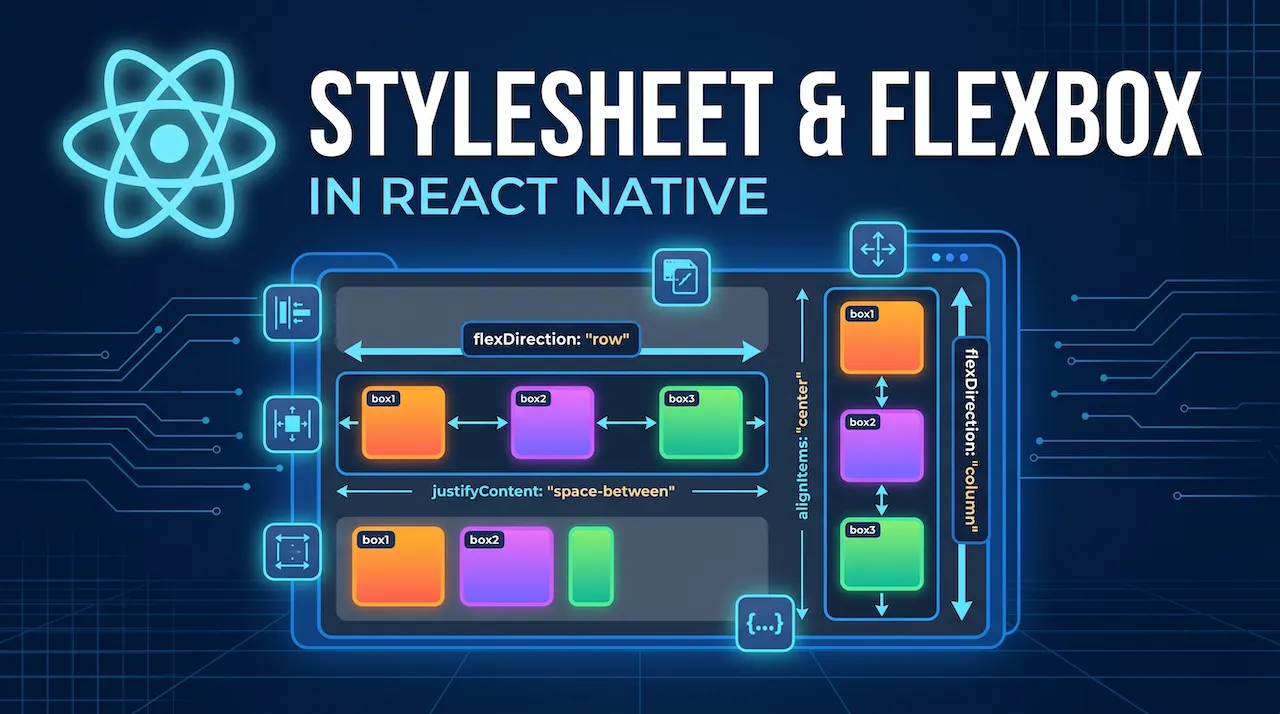
In the previous article, you witnessed the "magic" of how code on a computer instantly appears on the phone screen via Expo Go. But magic is actually just technology we don't fully understand yet.
When running the npx create-expo-app command, the system automatically generated a series of folders and configuration files. You are probably confused: "What is this file for? Is it okay to delete it? Where do I start writing code?".
In this article, we will dive into the project, dissect each component, and analyze how a "Hello World" program in React Native really works.
1. Decoding the Expo project folder structure
If you use the latest version of Expo (with the Expo Router architecture), opening the project in VS Code will show you a list of files and folders. Below are the most important "characters" you need to remember:
my-first-app/
├── app/                 # Contains the screens of the application
│   ├── _layout.tsx
│   ├── index.tsx
│   └── profile.tsx
├── assets/              # Contains images, audio, fonts...
├── node_modules/        # Contains libraries (automatically generated)
├── app.json             # Application configuration (name, icon, splash...)
└── package.json         # List of libraries and runtime commands
The app directory
This is where you will spend 99% of your time working. With modern Expo Router, every file you create in the app/ directory automatically becomes a screen in the application.
- For example: The
app/index.tsxfile is the home screen. Theapp/profile.tsxfile will be the profile screen. This concept is called File-based routing, which is highly intuitive and easy to manage.
The assets directory
True to its name, this is where static resources that are not code are kept. Images (.png, .jpg), audio files, custom fonts, or your app icons will all be "stuffed" in here.
The node_modules directory
This directory contains all the third-party libraries your project uses (including React and React Native themselves).
- Vital note: NEVER edit code in this directory, and never upload this folder to GitHub/GitLab because it is very heavy. It will be generated automatically when you run the
npm installcommand.
The app.json file
This is like the "ID card" of the application. All core information needed to publish the app to the Store resides here:
- The application name displayed on the phone screen (
name). - The application icon (
icon). - The splash screen when starting the app (
splash). - The package name (Bundle ID for iOS and Package Name for Android).
The package.json file
This file lists all the "personnel" (libraries) currently working in your project along with their version numbers. It also contains script commands for you to start the project, such as npm start.
2. Writing "Hello World" code and syntax analysis
Now, open the app/index.tsx file (or App.js if you are using an older version) and delete everything. We will manually rewrite the "Hello World" program from scratch to understand the essence.
Type the following code snippet:
import React from 'react'
import { View, Text, StyleSheet } from 'react-native'

export default function HomeScreen() {
  return (
    <View style={styles.container}>
      <Text style={styles.title}>Hello World!</Text>
      <Text style={styles.subtitle}>Welcome to React Native</Text>
    </View>
  )
}

const styles = StyleSheet.create({
  container: {
    flex: 1,
    backgroundColor: '#fff',
    alignItems: 'center',
    justifyContent: 'center',
  },
  title: {
    fontSize: 24,
    fontWeight: 'bold',
    color: 'blue',
  },
  subtitle: {
    fontSize: 16,
    color: 'gray',
    marginTop: 10,
  },
})
As soon as you press Save, the phone screen will display perfectly centered text. So what does this code mean? We divide it into 3 parts:
Part 1: Import - Declaring tools
import React from 'react'
import { View, Text, StyleSheet } from 'react-native'
To use <View> or <Text> tags, you have to "ask permission" and import them from the react-native core library.
Part 2: Component - Building the Interface (JSX)
export default function HomeScreen() {
  return <View style={styles.container}>{/* Display code here */}</View>
}
Every screen or part of the interface in React Native is called a Component. Here we create a function named HomeScreen.
- The special thing is that instead of returning conventional calculated data, this function returns JSX (a syntax for writing interfaces that looks exactly like HTML but operates using JavaScript).
- The
<View>tag acts like a<div>tag in the Web, used to wrap and contain other elements. - The
<Text>tag is used to display text. All text MUST be inside a<Text>tag.
Part 3: StyleSheet - Styling the app
const styles = StyleSheet.create({ ... })Instead of using a separate .css file like in Web programming, React Native uses the StyleSheet tool to create CSS right inside the JavaScript file. It helps the code run faster and reports errors immediately if you mistype a property name.
3. The flow underneath: How does the app run?
To become a good developer and not just a "code typist", you need to understand the underlying flow when you open an Expo application:
- Booting: When you tap the app icon, the operating system (iOS/Android) will look up the configuration file (
app.jsontranslated to Native) to know the app name, and display it on the Splash Screen. - Loading JavaScript: The JavaScript virtual machine inside the device (Hermes Engine) starts reading your code. It goes straight to the
app/directory and looks for the default screen (index.tsx). - Translating (The Bridge / JSI): React Native reads your
<View>and<Text>tags and commands the operating system: "Hey iOS, draw me aUIView. Hey Android, draw aTextView". - Rendering: The native interface is rendered on the user's phone screen, providing a 100% Native smooth feel.
Conclusion: The Expo project structure is no longer scary
After this article, the Expo project structure is no longer a scary "black box". You have grasped that app.json is the "brain", app/ is the "heart", and know how a Component combining Logic (JS) - Interface (JSX) - Aesthetics (StyleSheet) works.
However, a real application doesn't just stand still. The text and numbers on the screen need to change when users interact (e.g., clicking a counter button, typing into a search box). To do that, we have to get familiar with more powerful tools in React.
See you in the next tutorials!